Security notes
Under the hood of Windows: Using Process Monitor
A step-by-step look at svchost.exe with Process Monitor: filtering events, following file and registry activity, and understanding the parent process.
Originally published on Medium on 23 May 2025. Select a screenshot to open the full-size image.
If you’ve ever wondered what exactly a process does under the hood when it runs on your Windows system, you’re not alone. Understanding how the internal activity of processes work is very useful and also enjoyable. With Process Monitor you can get a real-time view into different types of activities. It does this by capturing those activities.
Process Monitor (Procmon) is one of the tools in the Windows Sysinternals suite. It is a very powerful tool which provides real-time visibility related to the file system, registry, processes and threads, and also network operations. It is a perfect tool if you want to see what each process is doing behind the scenes. It is also used a lot for malware analysis and troubleshooting purposes, however we will use it here to learn more about a specific process.
To bring this to life, let’s do a real-world example. We’ll track a common Windows process and try to explain what each action means along the way. Learning by doing is often the best way to learn, so let’s get some hands-on experience. This post assumes some basic knowledge about Procmon. If you want to learn more about Procmon itself, I highly recommend this article (not affiliated with the author): The Ultimate Guide to Procmon.
Step 1: setting up our filter
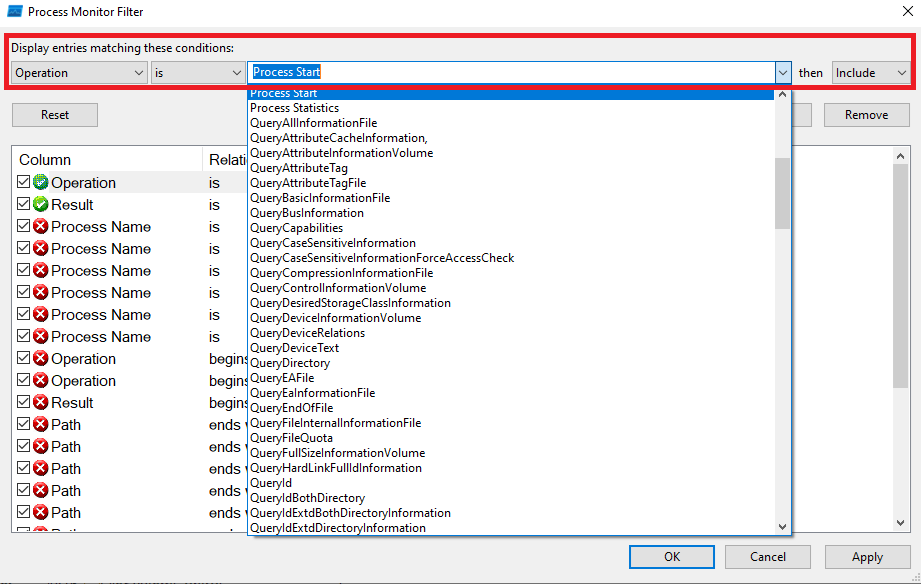
A good filter to use for our goal is Operation is Process Start to see which processes have been started. After having opened Procmon, we can add the filter as follows:
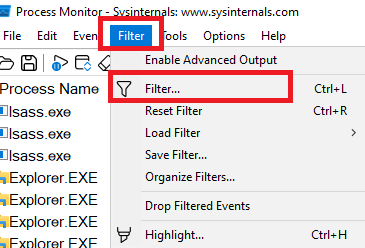
Next, we will choose include Operation is Process Start. Notice that we can also use the dropdown option:
After having applied the filter, we can see the processes below. Note that your screen probably will show different processes. A lot of processes like svchost.exe and msedge.exe for example can have multiple instances (see PID 884 and 3312 as an example):
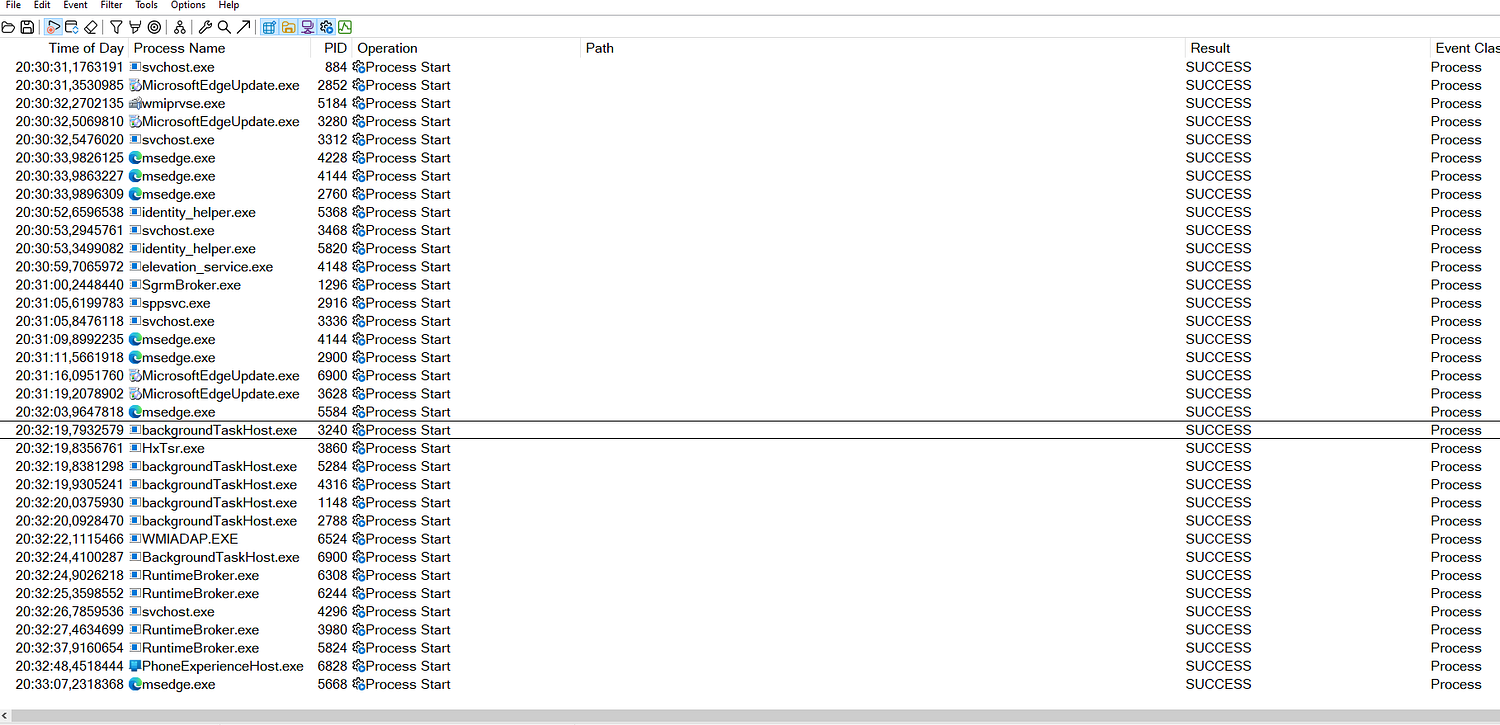
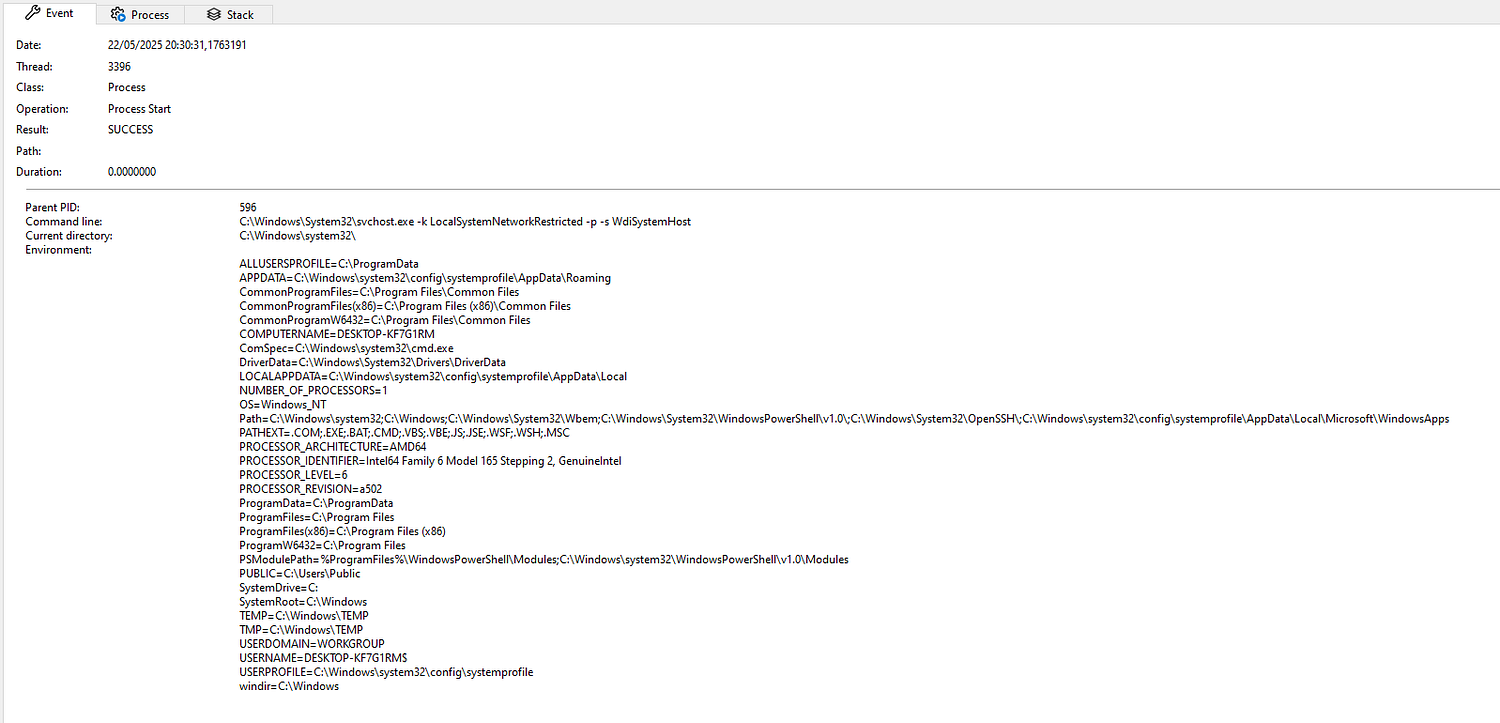
To study what a specific process is doing, we can either double click on it to see the properties. Here I double clicked on the svchost.exe process at the top:
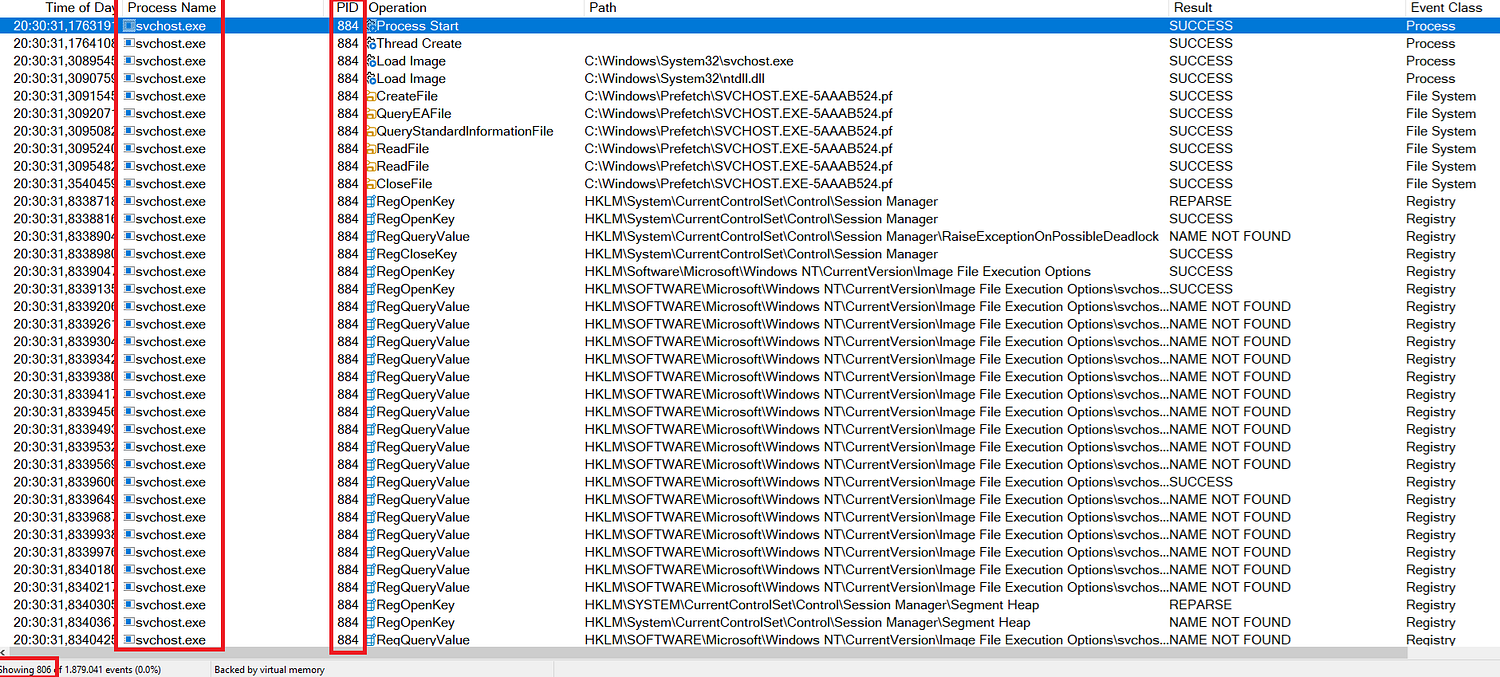
Or we can take note of the PID and filter on that to see all the related operations. Let’s filter on PID 884 from svchost.exe. As you can see there are 806 related events to this PID:
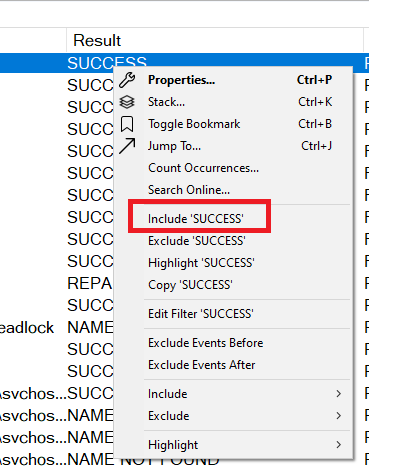
Let’s filter further to include SUCCESS results only. We can do this by right-clicking on SUCCESS and choose include ‘SUCCESS’. We do this because we’re not interested in errors for our goal::
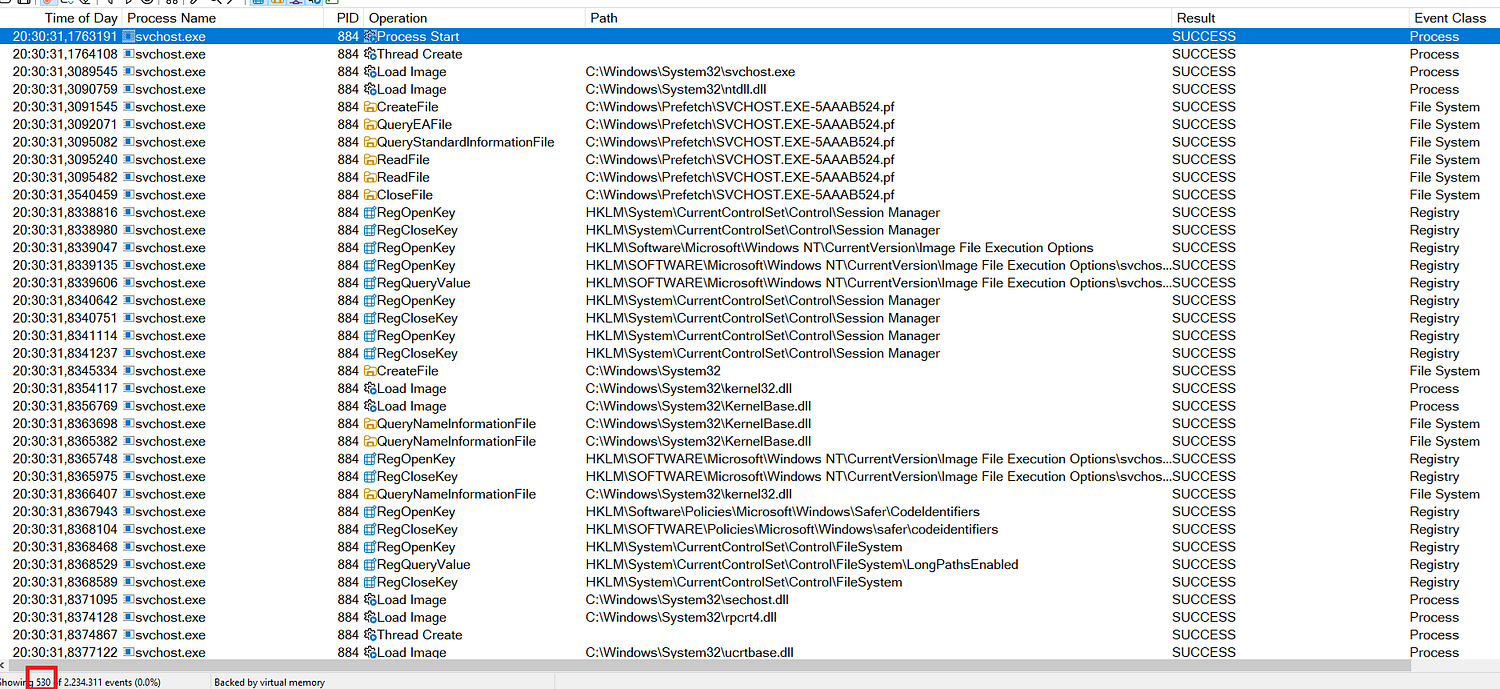
As a result we can now see 530 events instead of 806. If we did not apply a filter at all we would see more than 2 million events. So the trick is always to filter down as much as possible without missing essential information:
Step 2: use the Count Occurences option
If we now go to Tools > Count Occurrences, we can see the different operations in relation to this PID. We will choose Operation as a column. Count Occurrences is useful because it gives a high-level summary of the different categories:
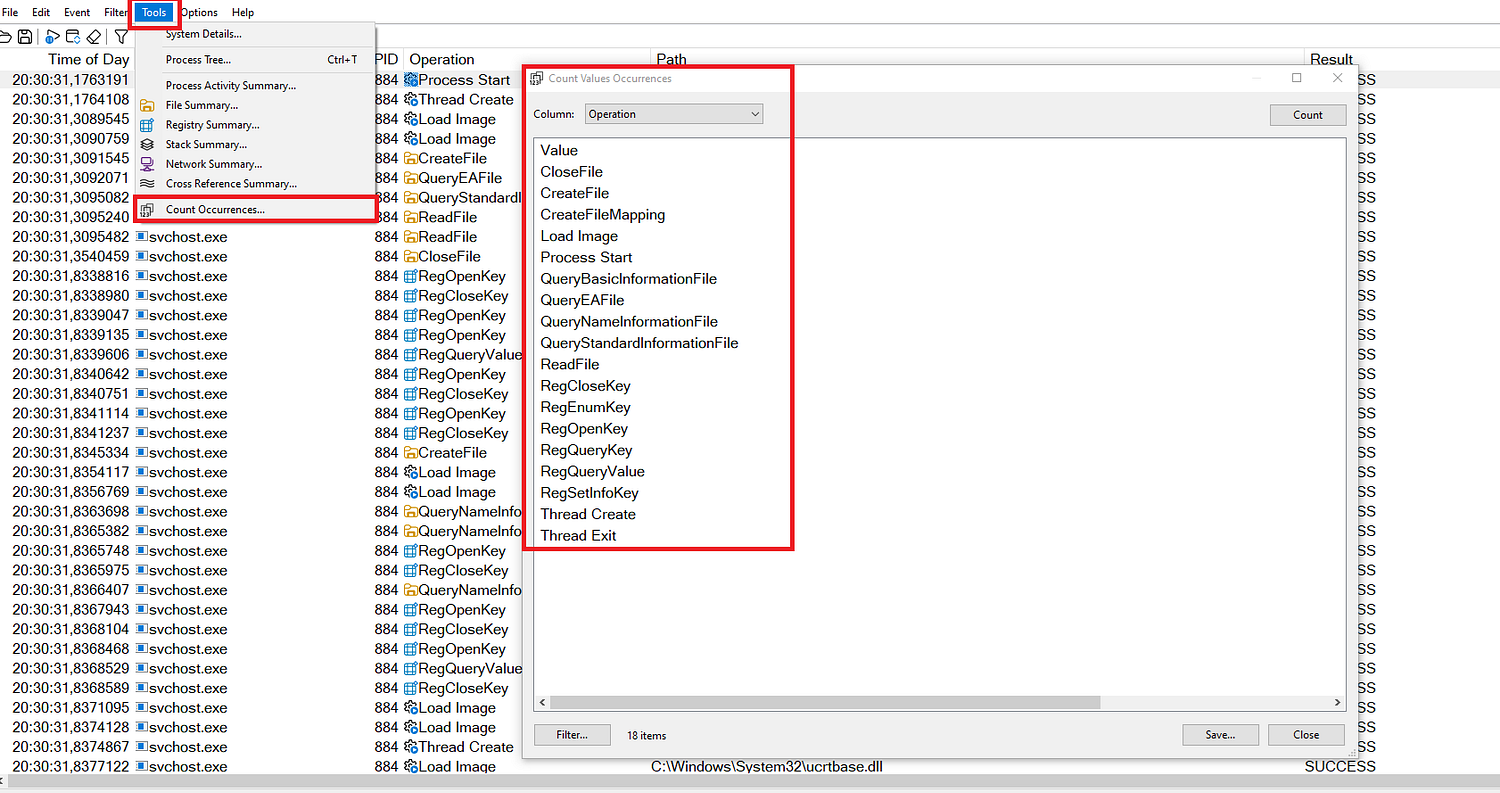
This shows the different operations used in our filter. They are as follows:
Process & Thread operations
Process Start — Indicates that a process was started. Logged when a new process begins execution.
Thread Create — A new thread was created within the process.
Thread Exit — A thread terminated its execution.
A thread is like a single task inside a running program. A process can have many threads working on different parts of the program at the same time.
File System operations
CreateFile — Requests to open or create a file or I/O object (includes files, pipes, devices). Most interactions with files start here.
Load Image — A DLL or EXE file was loaded into the address space of a process.
ReadFile — The process read data from a file handle previously opened (usually by CreateFile).
Registry operations
RegCloseKey — The process closed a handle to an open registry key.
RegEnumKey — Enumerates the subkeys of an open registry key.
RegOpenKey — Opens a handle to a registry key.
RegQueryKey — Queries information about the key itself (e.g. number of subkeys, last write time).
RegQueryValue — Reads a value from an open registry key.
Step 3: breaking down svchost.exe activity
Let’s see what is happening step by step:
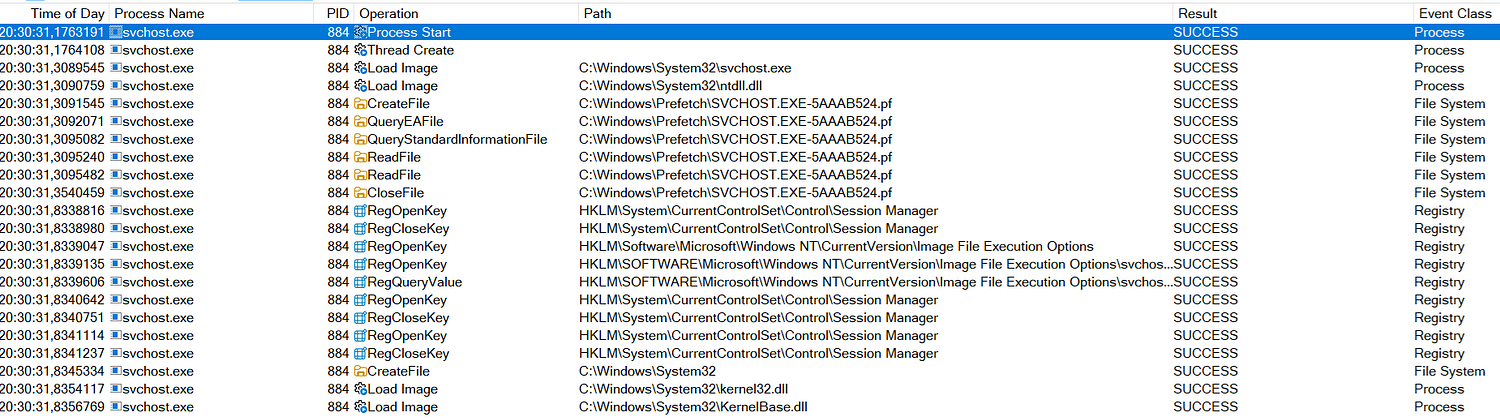
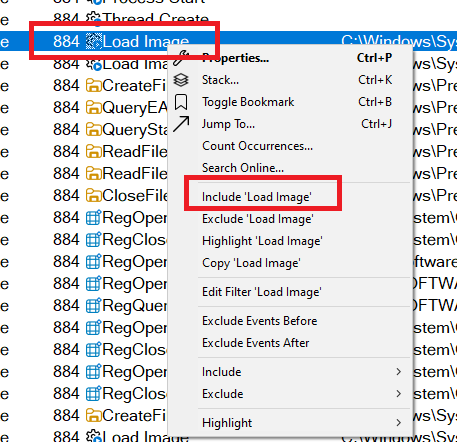
At first we can see that our process svchost.exe is launched. A new thread is created within this process, initializing execution (the process of setting things up so a program can start working). After this the image is loaded with important DLLs. We can view all the DLLs being loaded if we right-click on Load Image and choose Include ‘Load Image’:
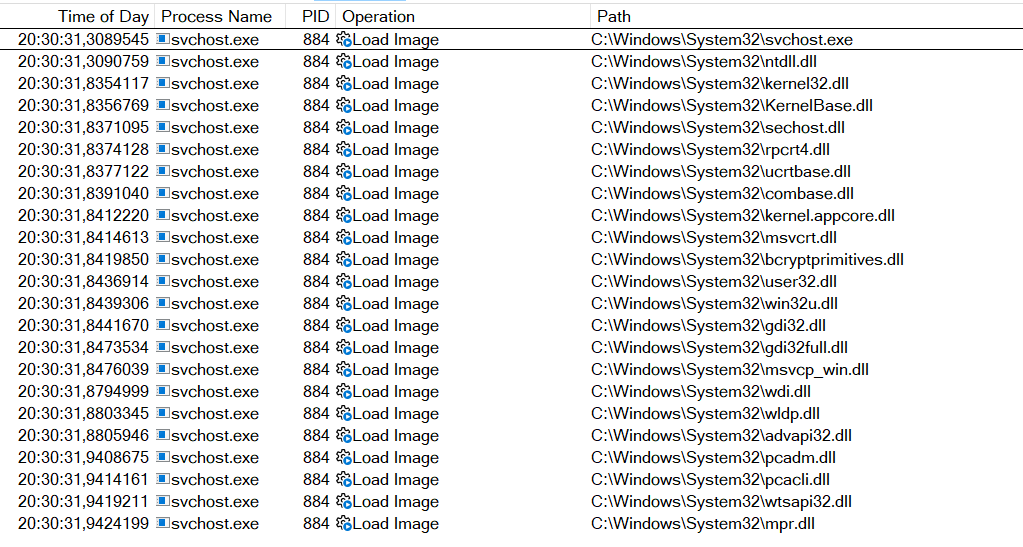
Here we can see svchost.exe and the list of loaded DLLs (in relation to this PID). You can double-click on the selection to see more details:
Now let’s go back to the filter on the PID. After the loading of ntdll.dll (NT Layer DLL) we can see different File System events. Ntdll.dll lets applications talk directly talk to the Windows kernel (kernel32.dll). It is the bridge between the user mode and kernel mode. What is the difference between the user mode and kernel mode I hear you asking?
User mode could be seen as restricted access. It is the area where regular programs run. This is a security feature because programs in user mode can’t directly access hardware or critical system resources. It also prevents the whole system from crashing if something goes wrong.
Kernel mode could be seen as the full access. It is the area where the core of the operating system runs (like drivers, the Windows kernel itself). If something crashes here, the whole system can crash. So for programs in user mode to talk with the kernel, they need ntdll.dll.
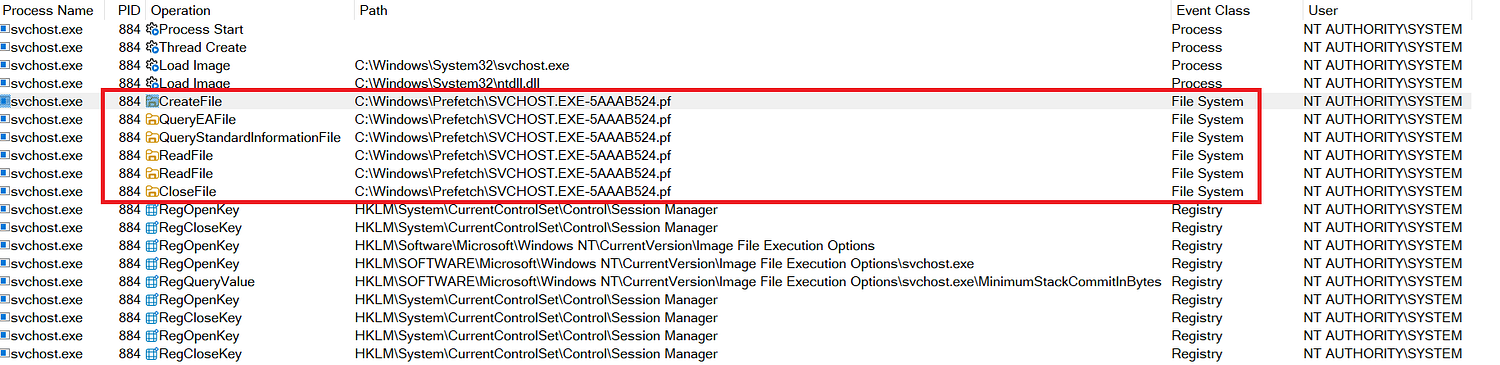
At the start we can see the opening of a prefetch file SVCHOST.EXE-5AAAB524.pf in the C:\Windows\Prefetch\ directory. A prefetch file is created by the operating system to improve the process startup times. Afterwards, it tries to get some information by querying it and by reading the contents. After this it closes the file. In essence, all this is done to optimize the performance of the process. This in turn contributes to the overall performance of the operating system.
In the the part that follows we can see the process interacting with the Windows Registry:

It performs different actions like RegOpenKey, RegCloseKey, and RegQueryValue. RegOpenKey opens a registry key. We can see the name of the key on the right side. In this case it starts with HKLM\SYSTEM\CurrentControlSet\Control\Session Manager. The Session Manager Subsystem (smss.exe) is the first user mode process launched by the Windows kernel.
RegCloseKey closes a handle (this is like a reference number the system gives to a program) to the specified registry key, in this case Session Manager (see: https://learn.microsoft.com/en-us/windows/win32/api/winreg/nf-winreg-regclosekey).
RegQueryValue reads the data stored in a specific registry value. In this case it reads the MinimumStackCommitInBytes value of the Image File Execution Options (see: https://learn.microsoft.com/en-us/previous-versions/windows/desktop/xperf/image-file-execution-options).
Now let’s take a look at next part:
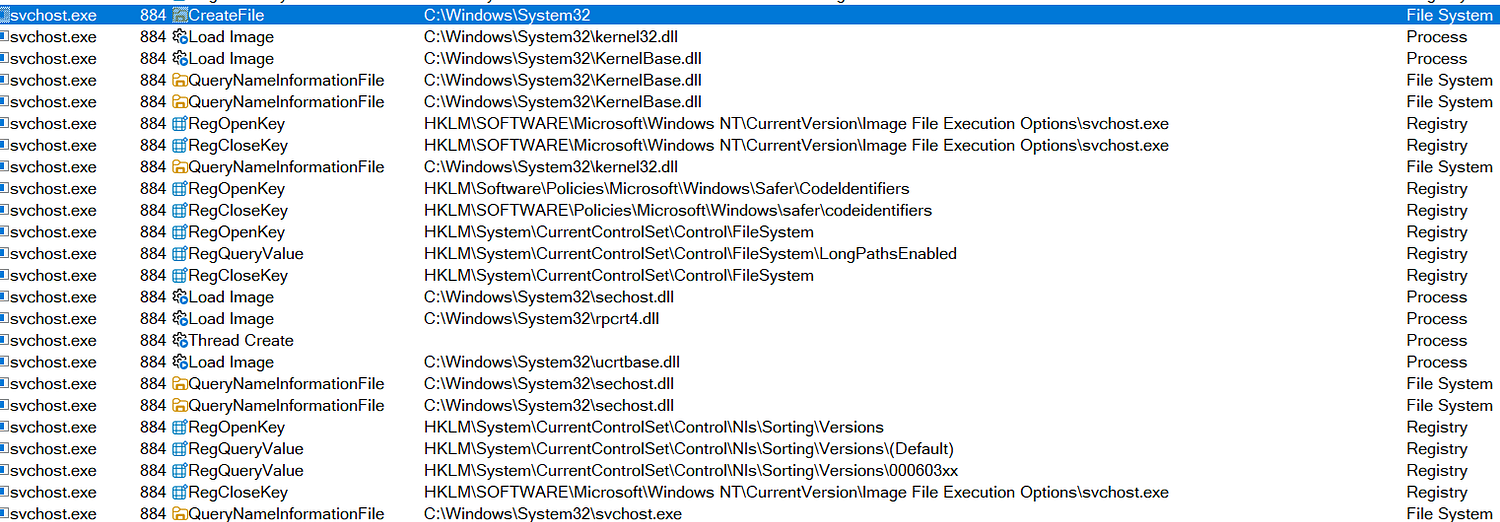
Here we observe multiple events related to the C:\Windows\System32 directory. Some more DLLs being loaded, also some registry key being accessed and some other queries.
After this point, we can see a lot of registry key operations and closings related to COM (Component Object Model) settings. COM is a Microsoft technology that allows different software components to talk to each other, even if they are written in different programming languages. Also, we can see that combase.dll is loaded. All these steps help set up safe ways for the service to talk to other programs:
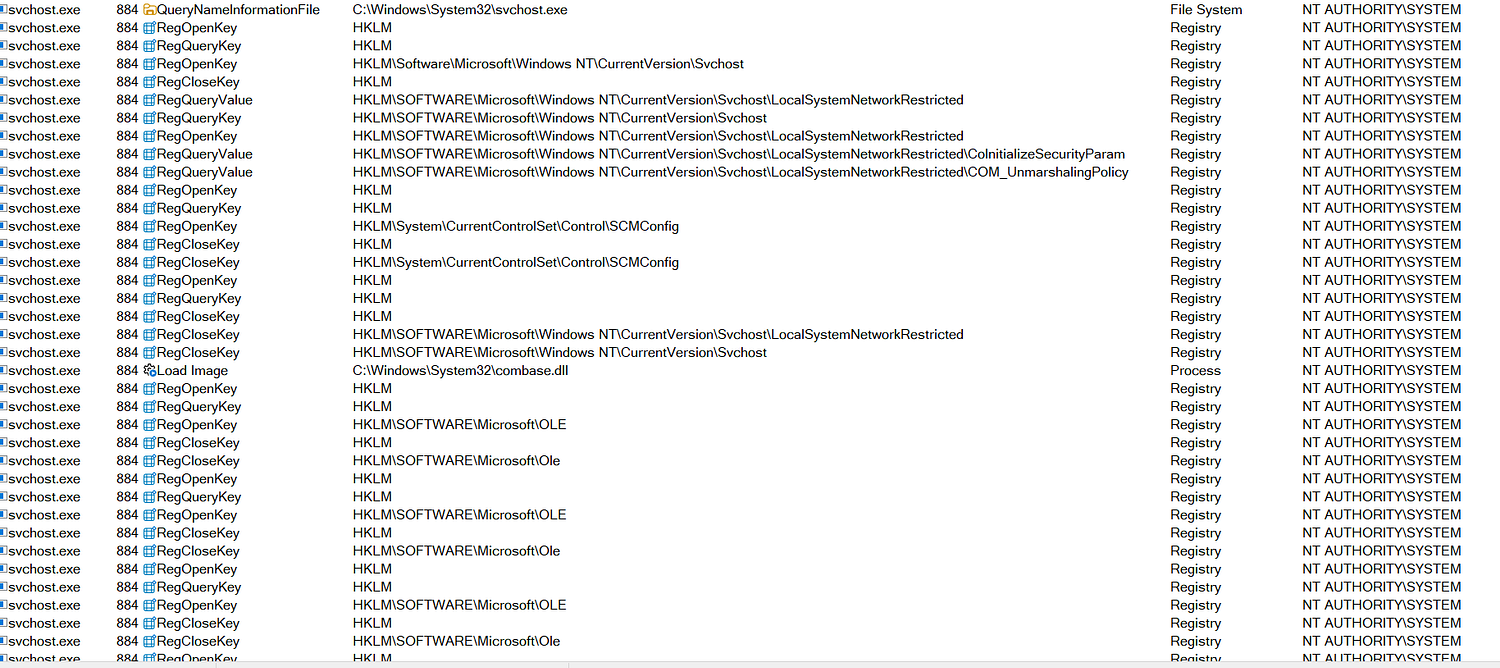
This goes on for a while. After this we can see some new File System operations related to combase.dll, rpcss.dll (Remote Procedure Call System Service), and kernel.appcore.dll:
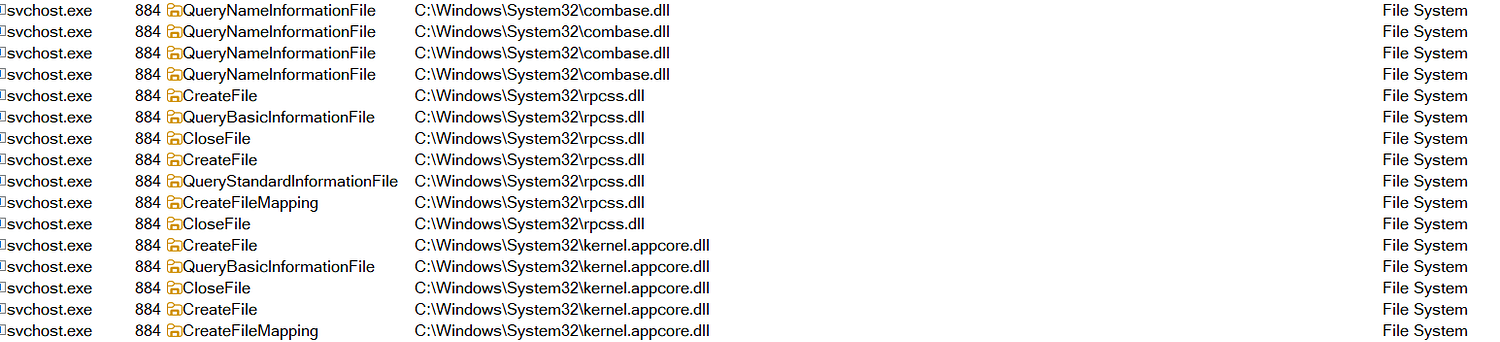
Rpcss.dll plays a role in enabling communication between different processes. It helps programs talk to each other, even if they’re running in different parts of the computer or on different computers (remotely). Kernel.appcore.dll is related to the kernel.
When the steps from above are done it loads the kernel.appcore.dll image along with msvcrt.dll and bcryptprimitives.dll. It also interacts with the Session Manager again:

And after this we can see a lot of more registry related operations happening, like security policies (FipsAlgorithmPolicy), RPC settings and more. FIPS is:
“a security implementation that is designed for certifying cryptographic software. Windows implements these certified algorithms to meet the requirements and standards for cryptographic modules for use by departments and agencies of the United States federal government.” (FIPS)
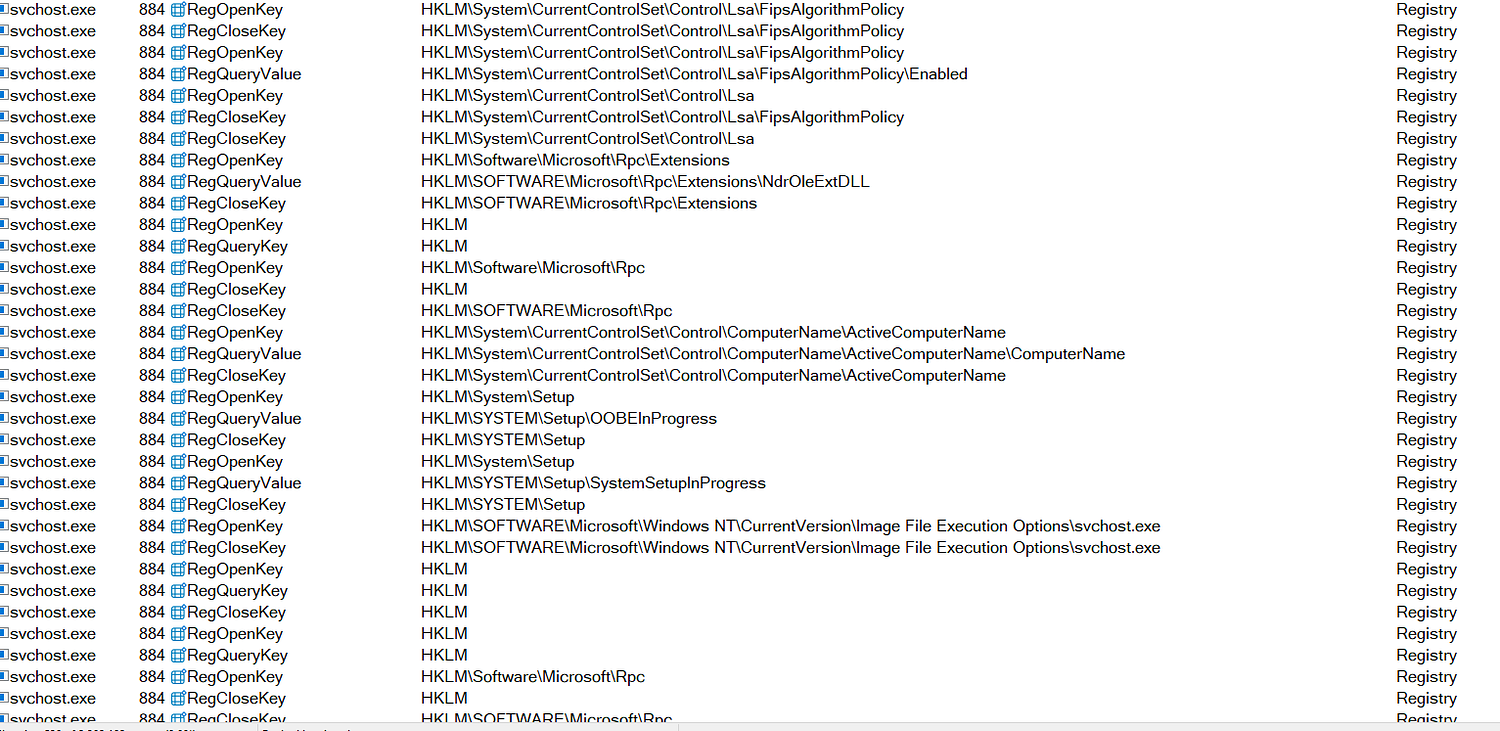
With some image loading happening in between mostly related to the Windows GUI:

After some more registry operations, we can see svchost.exe accessing some language related things. MUI is the Multilingual User Interface, which is necessary for enabling multilingual user experiences (https://learn.microsoft.com/en-us/windows/win32/intl/overview-of-mui). In this case it is loading English (United States) specific resources:

In the next part we can see more interactions with the Windows Registry. In this phase svchost.exe basically checks different registry settings before continuing:
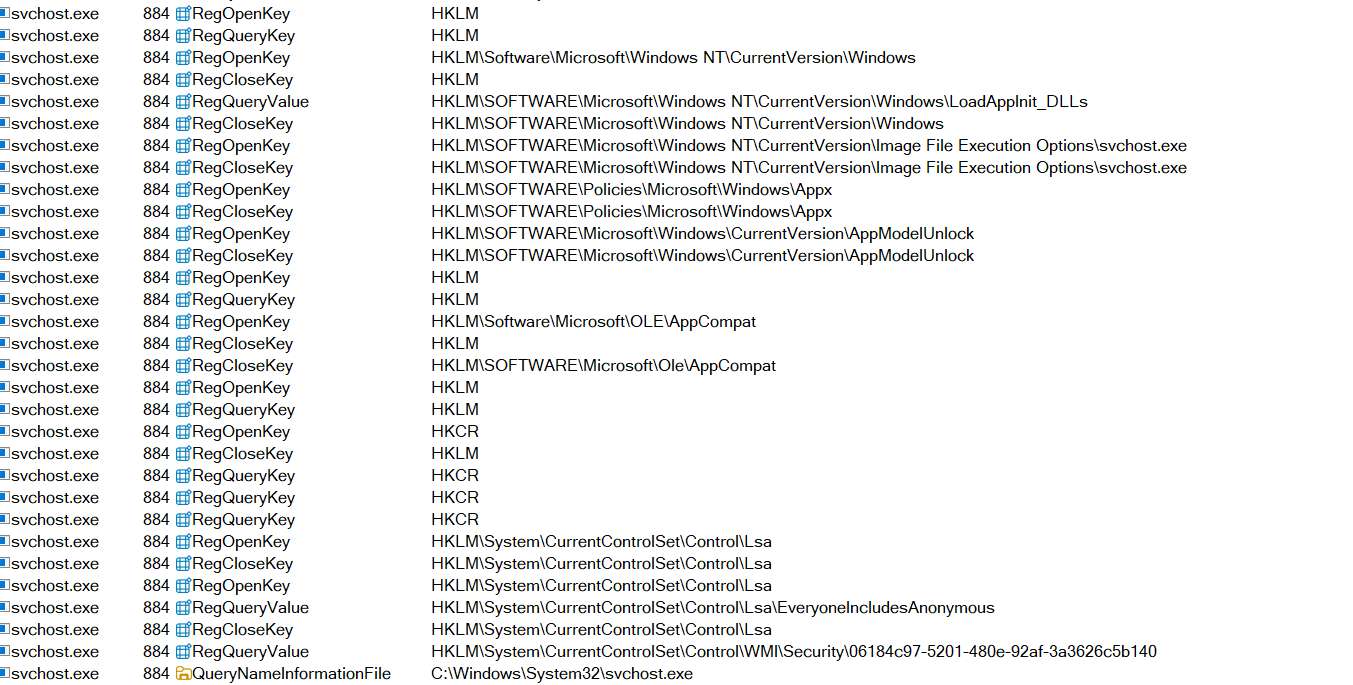
When this is done svchost.exe is interacting with other DLL files. It loads wdi.dll (Windows Diagnostic Infrastructure), wldp.dll (Windows Lockdown Policy, which is related to security settings) and advapi32.dll (access to advanced API functions):
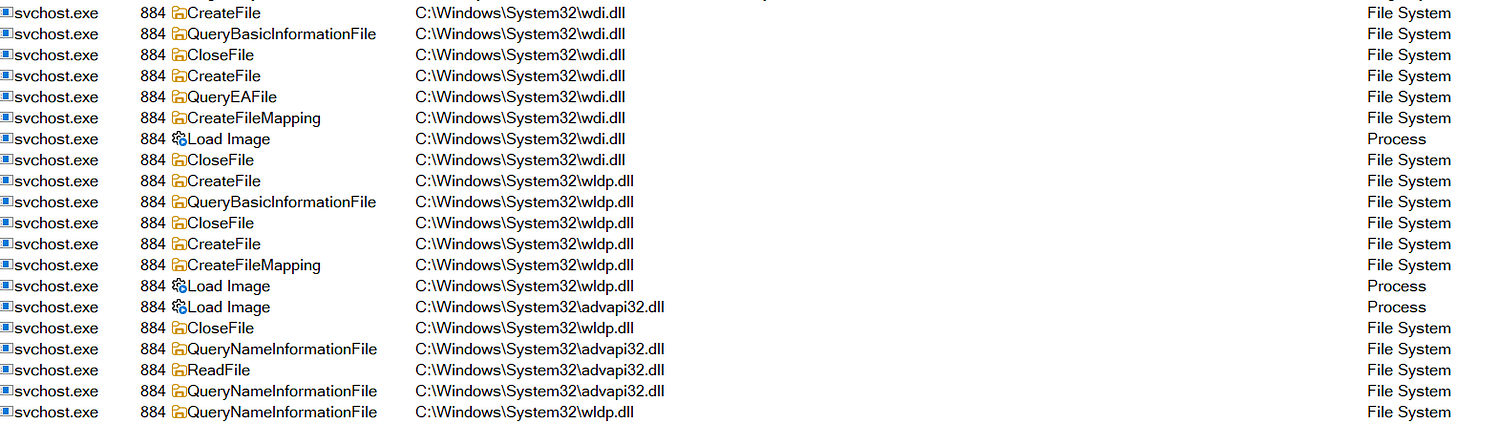
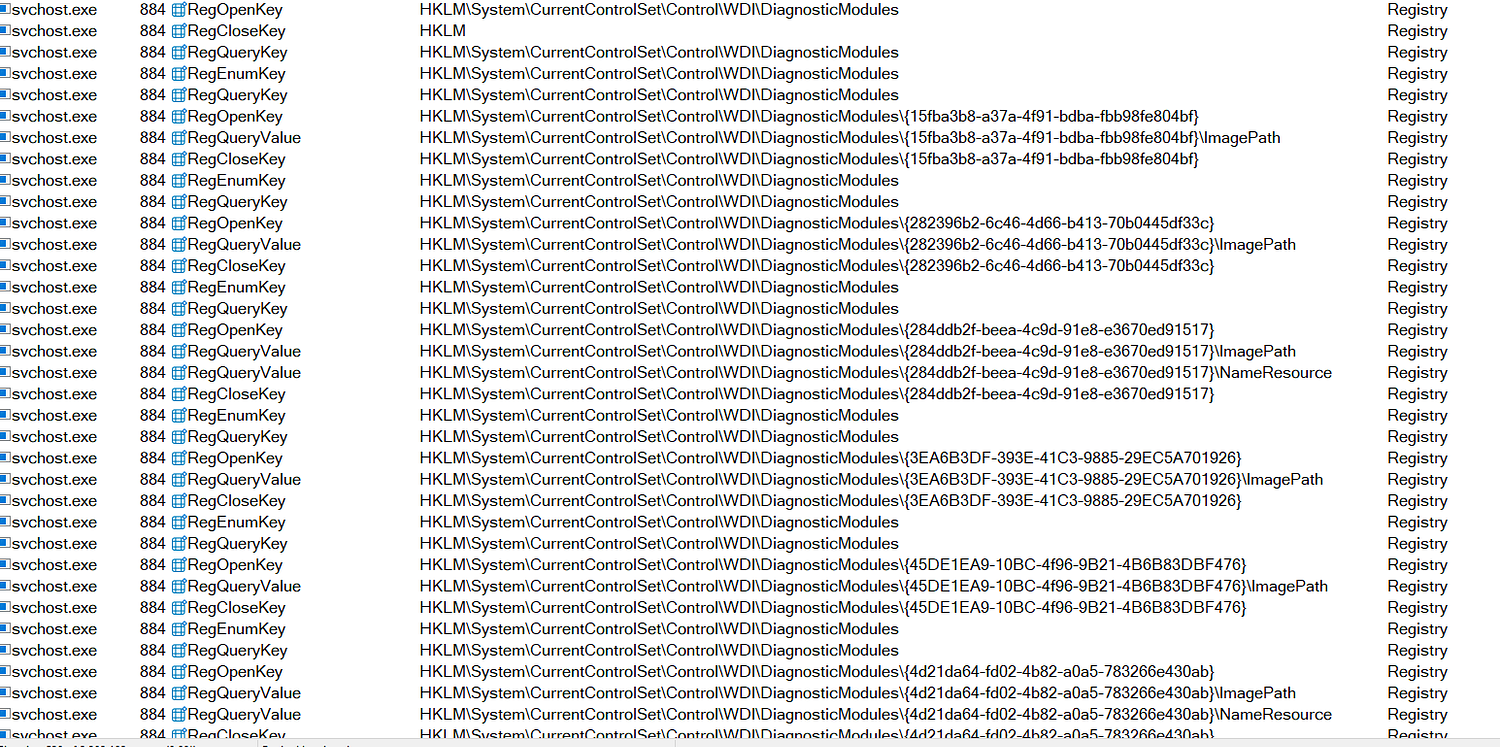
When this is done, we can observe svchost.exe querying a lot of data about the WDI diagnostic modules. This is important for system health monitoring and security among other things. This goes on for a while like this:
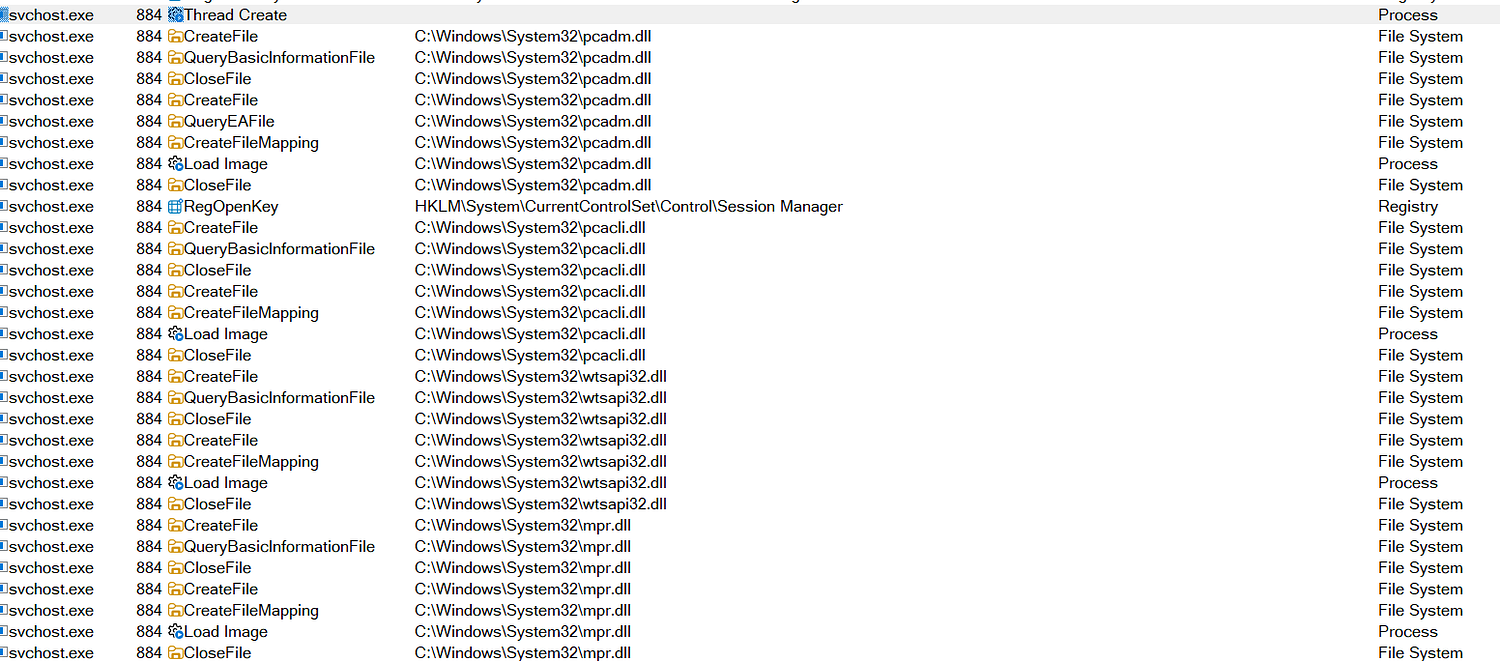
A new thread is created and we can see different operations happening for multiple DLLs. The following DLLs are loaded: pcadm.dll (Program Compatibility Assistant), pcacli.dll (Program Compatibility Assistant Client Module), wtsapi32.dll (Windows Terminal Services APIs), and mpr.dll (Multiple Provider Router):
Now we’ve arrived at the last part of the capture:
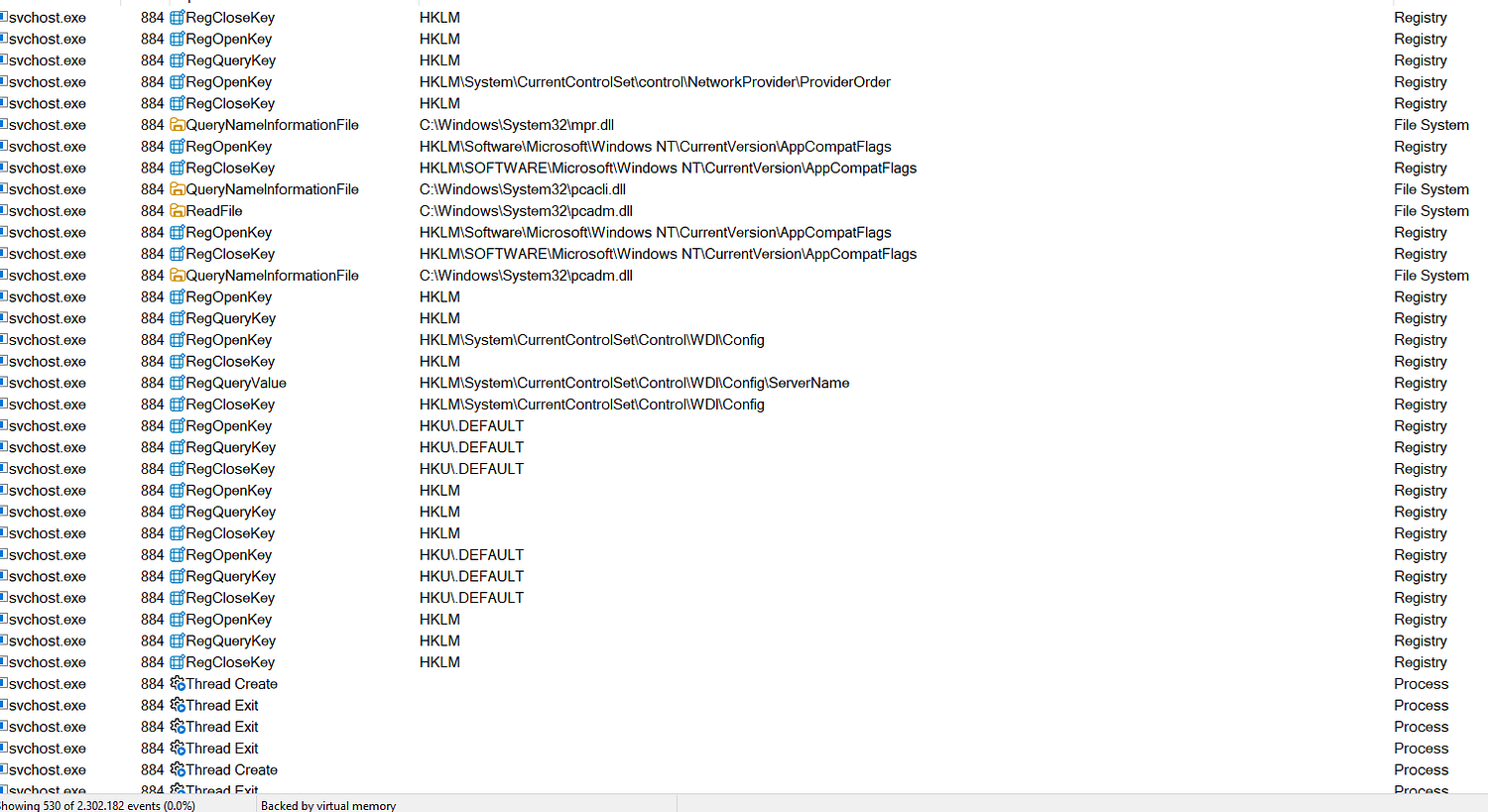
In this part it finishes the setup by reading various registry keys related to network provider and compatibility settings. It also uses different operations in relation to the DLLs. A network provider is a DLL that supports a specific network protocol.
Step 4: taking a short look at the parent PID
If we go back to the first event of PID 884 and open the properties we can see the parent PID (596):
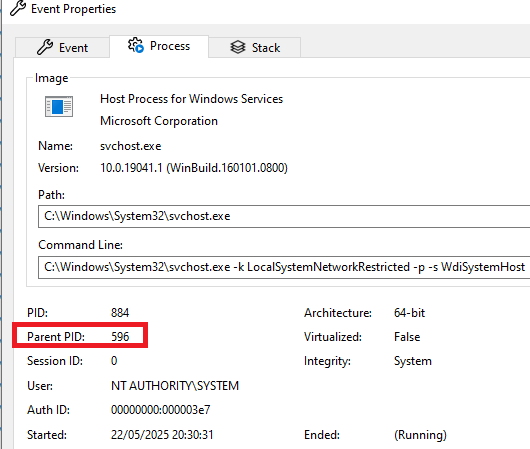
We can filter for this and see that this is actually services.exe (Service Control Manager). This process is responsible for starting and stopping different services. Svchost.exe runs the actual service binaries, but services.exe is the parent process of svchost.exe. Services.exe can therefore spawn multiple instances simultaneously of svchost.exe. The instances of svchost.exe are grouped in the registry. Our Procmon capture of PID 884 is only a capture of one such instance.
We can clearly see this in Process Explorer (another useful Sysinternals tool):
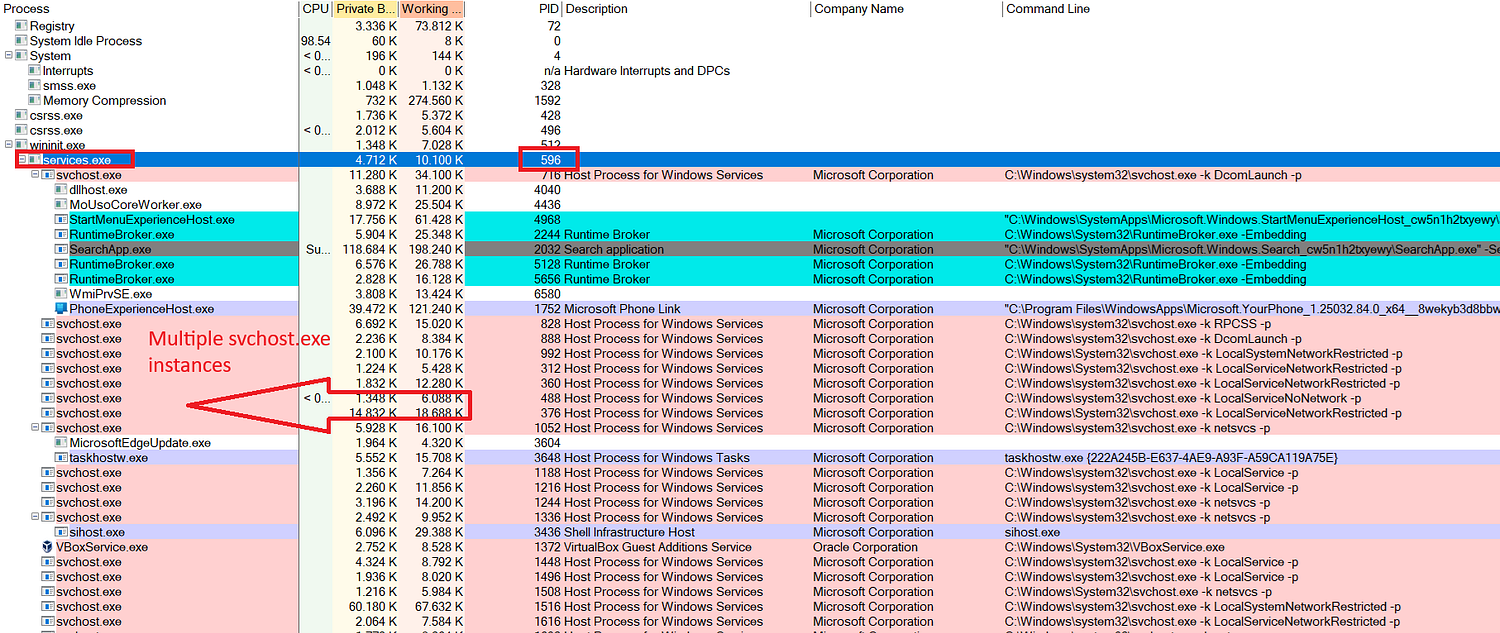
We can also see that services.exe is a child of wininit.exe (Windows Initialization). This in turn spawns multiple processes like svchost.exe and lsass.exe (Local Security Authority Subsystem Service). LSASS is responsible for enforcing security policies on the system. Normally you can also see the PID related to our svchost.exe here, but I killed the process already.
Conclusion
Through this step-by-step analysis, we’ve looked at the startup behavior of a single svchost.exe instance using Procmon. This methodology can be applied to any process to understand it better. This can answer questions as to what it’s doing, what resources it depends on, and whether its behavior is normal or suspicious and so on.
As a tip try applying this method to other processes such as explorer.exe or lsass.exe. You’ll be surprised how much you can learn. Thanks for reading.
References:
https://learn.microsoft.com/en-us/sysinternals/downloads/sysinternals-suite
https://scorpiosoftware.net/category/windows-internals/
System cryptography Use FIPS compliant algorithms for encryption, hashing, and signing
https://learn.microsoft.com/en-us/windows/win32/intl/overview-of-mui